

Antony Rappai

Tech Director & DPO in Education | EdTech Solutions Architect | AI/API & Low-Code Integrationist | Investing Enthusiast

Author: arappai

  • Thinking about revamping your school website?

    Thinking about revamping your school website?

    I have been trying to convince the School to move away from our overpriced Website hosting provider and moving to a more dynamic, modern website with WordPress and in the process save us at least 20000$ annually.

    Coincidently our Schools 30th anniversary was just around the corner, and our communications dept was in agreement about the facelifting our website, and we conceptualized the idea of our new, improved and revamped school website. How did the process go?


    First and foremost choose your Website platform 

    By website platform I mean a Content Management System (CMS), not to be mistaken for Course Management system like Moodle. There are at least 100 of them. Popular ones include Joomla, Magento (More for E-commerce), Drupal, Django, WordPress.


    What did we decide on?

    We decided to go with WordPress as I had tons of experience with it. Additionally, my mind was fresh of consulting with a couple of other international schools on their move to WordPress and choosing the right Hosting Provider. WordPress has been around for over two decades and has come a long way from being a plain old blogging platform to being capable of hosting large-scale websites with tons of features and modules. Some notable examples of sites on WordPress are

    • TechCrunch.
    • The New Yorker.
    • BBC America.
    • Bloomberg Professional.
    • The Official Star Wars Blog.
    • Variety.
    • Sony Music.
    • MTV News.


    Secure your Web hosting from day zero

    This is one thing that I can not stress enough about since WordPress is widely used, you need to lock it down pretty hard. Just due to its sheer popularity, it has become a very common target for hackers and bots, but there are multiple ways to keep it secure using IP Tables on your Linux server, Using wordfence Plugin, Cloudflare DNS & DDOS, etc.


    What else we need to decide ? or Worry about before getting your feet wet?

    Decide how you are going to host your WordPress

    There are multiple ways to host a WordPress site; you can host directly with WordPress, Amazon Web Services (AWS), Google Cloud. We initially thought about using wordPress.com, but we couldn’t integrate their Hosting plan with our Cloudflare DDOS & DNS, so we went about hosting it on our own Data Center.

    Additional Recommended Components of your Hosting platform if self-hosting or with any Cloud service provider. I won’t be writing in detail about each of the below steps in the setup, I am going to save for another post.

    • Ubuntu: This is the Linux OS that we decided to use, it is lightweight and perfect for hosting WordPress, in fact, it is recommended for WordPress by WordPress, it secure and releases regular security updates.
    • Webmin: This is a web-based GUI that makes managing Linux servers a breeze, it has pre-built scripts to install everything needed for WordPress – that included PHP, MySql, Apache, permissions, it also has pre-built IP Tables modules built-in with a default set of rules, good thing about this is that it opened me to the whole world of IP tables. With Webmin, you can manage a whole lot of aspects about the Linux server, otherwise for which you would have to know a lot of the Linux Shell commands.
    • Cloudflare: Cloudflare is cloud-based Content Delivery Network (CDN) & Web Application Firewall ( WAF ). At the most basic level, this prevents your site from DDOS attacks and caches frequently used files like JPEG, Videos to make your site load faster. Cloudflare is an absolute must if you are using WordPress, this acts as the first layer of defense. I would highly recommend using this for any of your public-facing websites as well. For 20$ month you can get additional WAF ( rules that prevent your site from Cross-site scripting attacks, SQL injection attacks.
    • Wordfence: Wordfence is a long time running IPS/IDS for your WordPress site, this is very popular, and the free version had enough features to keep you away from unwanted traffic, bots, hack attempts. Now you must be thinking but why so much security? Well as I mentioned earlier, the popularity of WordPress is attracting a lot of attention from hackers and bots from around the world, so you have to be careful.


    Choose a good theme that is actively updated and has good support, how do you find that out?

    We went with an excellent theme from ThemeForest, one that was extremely customizable as per our needs and came packed with a ton of features. They have amazing Demos which gives an idea of the functionality that’s packed within. Initially, I was a bit skeptical about using a theme that is very popular because I was worried about it being a target for hackers, but it is better to use a theme that takes security seriously, updates frequently and one that has excellent support.

    The below points are markers for choosing a good theme, keep these points in mind when you select your theme.

    • Good support / Good support portal with FAQ & Support forums.
    • There should be regular updates released, look for changelogs to see how far they have progressed.
    • Check popularity and Reviews of the themes.
    • Look for a theme that is responsive ( where the page adapts to the size of the screen – whether mobile or desktop )
    • Check the community forums for that theme to see how responsive they are.
    • Look for themes that are professionally developed by a team of developers/company rather than one guy.


    Choose a team of four to five members with the below skill set

    • Basic coding skills and ability to understand and explain complex processes, experience with Linux servers, hosting, firewall, SQL, Site migration, etc. ( this guy is me BTW 🙂
    • A person who can take good pictures, video and has an eye for quality photos and editing them
    • A fresh of the boat programming Intern would be nice if your budget allows, to do a lot of the mundane tasks and custom coding, CSS, javascript, etc.
    • A person who can write good content and can follow with departments to clean up the content and give out good ideas like adding certain colors in Elementary school or Adding stat boxes for each division etc.

    You may not need someone with extensive coding knowledge, because in WordPress most of the content and page building is done on a DIY drag & drop editor. It all depends on the Theme that you use. You need to be patient and read through the theme documentation, about 99% of your questions are already answered in the forums and documentation for that particular theme. But none the less it helps to have a person with intermediate coding knowledge.


    What else did we find out?

    You have to factor in at least five months for the whole process. You then need to test it and do a soft launch for one month. A couple of other things you may want to check are, see if all the forms are working, like contact forms for admissions, withdrawal forms, school info, and address, etc.

    • Have weekly milestones
    • Never Rush into this project
    • Meet every week to discuss milestone achievements
    • Form a panel of 5 parents, five staff to test run the site and ask for suggestions


    The End Result 

    From this 

    Screen Shot 2018-10-01 at 9.12.26 PM
    Old School Website


    To this 

    screen-shot-2018-10-01-at-9-14-06-pm.png
    New School Website


    Quite frankly I wouldn’t do this post any justice till you checked out the full website at https://asd.sch.qa


    Do you need help with rebuilding your School website? Need some free consultation? If you are part of a “Not For Profit School”, then please fill in the contact form and get in touch with me.



  • Fix it yourself with Sugru

    Fix it yourself with Sugru

    My passion for investing and venture capitalism sparked my interests in Sugru, and I don’t regret this one bit. Jane Ní Dhulchaointigh developed Sugru in Ireland, a student of product design. She came up with the idea in 2003 when she was studying her post-graduate studies at the Royal College of Art.

    It is mouldable glue, and the best way to describe it is to call it a love child between play dough and super glue. The moment you take it out of its packaging, it feels as soft as play-dough and can be rolled into various shapes. Once out of the package, you have thirty minutes to shape it as you wish. Then the glue self-cures and hardens after twenty-four hours and stays that way. Sugru is also waterproof and durable. Sugru sticks on to mostly anything, be it wood, plastic, or metal, and it can then be molded into whatever shape you would like. You have half an hour to break it down and build it back up as many times as you would like. Sugru can actually be used in real life scenarios from fixing charging cables, earphones, hanging picture frames on to your wall, putting back broken pieces of the vase together, The possibilities are endless.

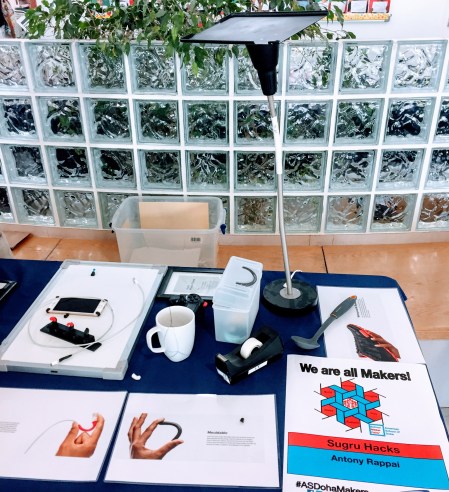
    After some research and free samples, I decided to introduce it to our very first Amercian School of Doha’s  Maker Faire event because I thought it would spark the children’s creativity and interest in fixing things.

    img_0004-1.jpg
    My Sugru Maker Faire Booth

    I modified my PS4 controller to make it more ergonomic ( I am winning more FIFA games now, or maybe it is just a coincidence ). There was an old IKEA Lamp that never got used, and I converted that into a customized IPAD stand.
    Introducing something like this in schools can change the way children think. It could spark their creativity. Perhaps this could be integrated into the maker space for elementary and middle schools.

    In the midst of adding too much Technology, 1:1 laptops, Coding and Robots this could be a refreshing addition to work the young learner’s mind.


  • The cyber security plan every school needs

    The cyber security plan every school needs

    Not many schools in today’s world take cybersecurity seriously.Over the last couple of years, we faced some significant security breaches in our school, one instance where our school information system got hacked with the strut vulnerability, and another case was when we had a lot of email accounts hacked as a result of being phished.

    After analyzing for days, we noticed that we were a constant target for bots and hackers for any of our public facing sites, Even if you have a firewall to keep you away from threats you are still susceptible, especially zero-day vulnerabilities and another thing to keep in mind is over 90 % of the attacks are due to human errors ( like submitting your credentials over a phishing link) or users going to the wrong sites.

    To keep up with the ever-growing threat of cyber attacks I came up with a four-pronged approach to keep our school safe from cyber threats

    Four-pronged approach?

    I classified them as

    1. Servers Security
    2. Network Security
    3. Client Computer Security
    4. Cyber Security Awareness / End User Traning 

    1.Server Security

    1.1 Server Software Updates and Patches:In order to protect the servers, we made installed the latest patches and updates on all severe, quite often server administrators think installing patches and updates are not necessary or not very important, but we learned it the hard way when one of our systems got affected with the Apache Strut vulnerability, always schedule a weekly or monthly downtime for your servers to be updated

    1.2 IPS / IDS and Firewall on all servers: We used the ever-reliable Symantec endpoint protection, although it said endpoint protection it worked for our servers too.We left the IPS and IDS at its default setting and configured the firewall to allow traffic to only the required ports.From the logs, it was clear that it was blocking IP address trying to exploit the vulnerabilities

    1.3 CloudFlare (WAF & DDOS): We set up CloudFlare as additional security for any visitors trying to get to our public facing websites like school website or school information system.What CloudFlare does is it creates a barrier between the public cloud and our servers, cloud flare scans the visitor traffic to see if they are genuine or some bots trying to hack. Additionally, it also caches certain aspects of your website.This is basically a WAF (web application firewall), CDN ( Content delivery network ) and DNS server and all this for free , After few weeks of the free version we decided to switch to the 20$/month plan which includes an advanced WAF and a predefined set of rules against vulnerabilities for HTML, PHP, MySQL, WordPress, additionally it consists of a set predefined signature rules. This worked really well for us because we were able to prevent a lot of attacks on our public facing sites being blocked

    Additionally, the free version provides basic DDOS, Ability to block or challenge malicious or blacklisted IP address, apart from that since CloudFlare acted as s DNS server for we no longer required to host additional public-facing DNS servers anymore thereby saving valuable resource on your server infrastructure

    2.Network Security: 

    Every organization has a firewall, right? But have you configured it correctly? Well, check again

    2.1 Layer 3 security: We allowed only incoming traffic to few of our services from the public that we restricted them to specific ports ( like your School information system, websites and Learning management system) the requirements can vary from org to org. It might be beneficial to keep track of the ports and public NAT assignments on a Google Sheet or Excel sheet.

    What about outgoing traffic?

    Generally, it is ok to allow all, we restricted dangerous ports and specific blacklisted IP’s

    since we had the cloud-based Meraki MX 600, we were able to do the following

    2.2 Layer 7 firewall: this gave us the ability to control traffic based on applications like Windows updates, YouTube, AV updates, etc

    2.3 IPS & IDS: this is very important for schools especially when you have 1:1 laptop environment and since the Meraki MX 600 comes with IPS & IDS from Sourcefire and Snort it did a pretty good job of blocking malicious files being downloaded into the school network (ever wondered how to mackeeper at bay 🙂

    2.4 Core Network Switch / Router security enhancements: It would be good practice to have Access Control list to disallow traffic between VLANs, for, e.g., Allowing your guest VLAN to access only the Internet and not any of the internal resources like servers and such

    additionally security on the network switches

    -port security based on sticky Mac to allow only designated IP phones to connect to that particular port

    -shutting down unused ports to prevent unauthorized computers from accessing the school network

    2.4 Wifi network security: Since we had the cloud-based Meraki access points, we could detect and block rogue access points and DHCP servers. Additionally, we could restrict and control traffic based on SSID for, e.g., We could limit traffic like YouTube and updates on per SSID basis. You don’t necessarily need Meraki to implement these changes most if the enterprise wireless systems have these abilities.

    3.Client computer security 

    3.1 Endpoint Security: First and foremost it is absolutely necessary to implement endpoint security, and we opted for the ever-reliable Symantec endpoint security which comes with IPS and IDS. We also took advantage of Symantec Endpoint Security Manager, it is basically a server that communicates with all the clients and is also used to push virus updates to your clients. The dashboard present within the SEPM also gives you a bird’s eye view of the clients that are infected and that have not been updated and also gives you the ability to push firewall policies to all your clients. In short, I can’t stress how important it is to have an anti-virus software for your clients that can be managed by a server and one that provides you a dashboard

    3.2 OpenDNS: How do you protect your student and teacher computers once they are out doing the school network? , I know your answer is probably endpoint security, But I beg to differ, endpoint security or anti-virus software is always a reactive measure, we wanted something more proactive in nature, to be able to prevent the staff from going to the malicious sites and blocking phishing links while they were away from our school network. Last year we had about hundreds of Gmail accounts hacked because a phishing link went viral and if we had the Open DNS we would have been able to block them from being accessed even if they were off campus.

    How does it Work ?: So basically OpenDNS has a roaming client that is installed on the client computers, which means that once installed all the DNS queries are routed through OpenDNS servers, then through the dashboard we can can block website categories like porn, social networks, gambling, this is especially good if you have a 1:1 school network where students take their computers home. It also gives the ability to block malicious website, phishing links, bot network websites, site that contain the virus, download links and URL’s that include viruses, etc. The dashboard gives a good understanding of the clients that have a high number of traffic hitting the malicious websites and which sites and categories were blocked.I used to think this was not necessary,  but in today’s world especially in schools of our size where over two thousand user accounts are susceptible to being hacked, I would highly recommend some kind of cloud-based DNS protection

    4.Cyber Security Awareness / Traning

    Last but not least, user awareness and training are of paramount importance. The schools should have a process where they update the Acceptable / Responsible use policy on a regular basis, set up cyber security awareness weeks where the tech dept along with tech integrators conduct workshops for teachers and students on how to stay safe in cyberspace.

    Check out my Cyber Security google slide presentation ( feel free to use it as a reference )

    Cyber Security Awareness Google Slide

  • Introducing Coding to Students & Teachers with Light Blue Bean

    Introducing Coding to Students & Teachers with Light Blue Bean

    What Is IOT (Internet of Things)?

    We’re getting really, really good at making small computers. While phones are an obvious example of this (your phone is much more powerful than a full sized computer from even twenty years ago), there are a lot of other places where we’ve started to stick small computers. All of these web-connected devices form something we call the IOT or “Internet of Things.”

    What Is Light Blue Bean?

    Light Blue Bean is a microcontroller that’s designed to be simple, cheap, and powerful. It’s a small processor that’s hooked up to a light, an accelerometer, a thermometer, and a few other bits of tech. Most importantly, however, it’s got built-in wireless. This enables you and your students to write custom code that can run on the Light Blue Bean. You can connect it to tablets, phones, and other devices in order to create connected systems. You can use it as a temperature sensor, have it control a lock, use the accelerometer as a game controller, or even program it to count the number of steps you take while you’re wearing it. The possibilities are endless.

    Do Other Devices Like This Exist?

    Light Blue Bean isn’t the only device of its kind. It’s an Arduino compatible device, which means it complies with certain standards when it comes to input, output, and programming. It competes with other Arduino compatible devices made by lots of other companies. Another popular mini-computer is the Raspberry Pi, which comes in a variety of configurations and price points. Like Light Blue Bean, these devices are popular among educators who teach students how to code.

    Why Teach Students To Code?

    One of the hottest terms among educators these days is “computational thinking.” It’s a concept that describes breaking down complex challenges into small tasks or pseudocode. Computational thinking is a valuable skill in any field, not just computer science. Being able to break down problems into more manageable chunks is absolutely vital to success in life. Since computational thinking provides a way for students to deconstruct problems in an organized and structured way, it’s often used to great effect for solving all sorts of challenges. Teaching students to code is an effective way of teaching them basic computational thinking techniques.

    How Can I Use Light Blue Bean In The Classroom?

    This step by step example illustrates how easy it is to make a basic program using the Light Blue Bean and the Tickle app. By changing just a few parameters, you and your students can make a wide variety of custom programs. For this example, we’ll make a controller for a boxing game.

    1. Open the Tickle App on the device you’re going to use for programming
    2. Make a new project using the Arduino Bean template
    3. There’s a bit of example code in the window when you start. In order to clear it, grab the blocks of code and drag them to the area on the left of your screen. They’ll disappear!
    4. In order to have a bit of fun, let’s add a character to our program! Go to the top right-hand corner to open the Devices & Characters dialogue. Let’s add a penguin for now. Penguins are very good boxers.
    5. A “When Starting To Play” block should have popped up on your screen. You can add code here that will execute when your program starts to run!
    6. Let’s add some control structures to our code. Add an “If / Then / Else” block from the code blocks on the left. It’ll be with the other orange control statements. Drag it under the “When Starting to Play” block in order to have this if statement executed when our program starts.
    7. In the green section on the left, you’ll find a bunch of operator expressions. Find one that compares numbers (less than or greater than) and drag it into the grayish box in your if statement. Now, your if statement will fire when the expression in the green box is true!
    8. You can type numbers into the boxes in your comparison operator in order to set the values. Let’s set the lower end (the number the pointy end of the < or > is pointing towards) to about 1.9. You can play with this value in order to change the way your game feels.
    9. Under the blue-green devices code blocks on the left, find the “Accelerometer” block and drag it into the other end of your comparison operator (the side the Pac-man wants to eat). Change the drop downs so it uses the x-axis of your Arduino Bean.
    10. Let’s make our if statement do some things! Under the first yellow block, drag in a pink sound and a purple “set looks” block. You can make these whatever you’d like. I’m going to set the look of my character to “shocked penguin.” These statements will be triggered when the if statement is called and the accelerometer is currently experiencing a high amount of acceleration, as set by the above green statement.
    11. Now let’s add some code to the “else” block of our if statement. Drag a purple “say” expression below the yellow block that says “else” and put in some text to let players of your game know that they need to punch harder. Try something encouraging like “keep trying” or “good work!”
    12. We’ve got the basic logic for our game all done! Add some control statements (like a loop) in order to call this code repeatedly. A few well-placed delays will keep your code from spamming your user. If you want to get really advanced, you might want to even use a variable to keep track of the highest acceleration the unit has experienced in the last second or so instead of checking the accelerometer in real time. Be sure to clear that variable after each success, however!

    Check Out My Video Presentation Below 

    https://www.youtube.com/watch?v=Fxu1HdqOAbg


    Check Out My Blue Bean Google Slide Presentation